
How to connect LinkedIn profile to LeadCarnival?
Step-by-step guide to securely connecting your LinkedIn account to LeadCarnival for outreach automation.

Written by Alex
Last updated 2 months ago
Before you start, make sure you have the following ready:
- Access to the Email linked to your LinkedIn account (for verification codes).
- Access to your 2FA (Two-Factor Authentication) device if 2FA is enabled on your LinkedIn account.
- Access to your Mobile if your LinkedIn account is logged in your LinkedIn mobile app.
These ensure a smooth login process and prevent session or security interruptions during connection.
🚀 After Signup
After signing up, you’ll be automatically redirected to the Profile Connect page. From here, you can immediately connect your LinkedIn account to start creating campaigns.
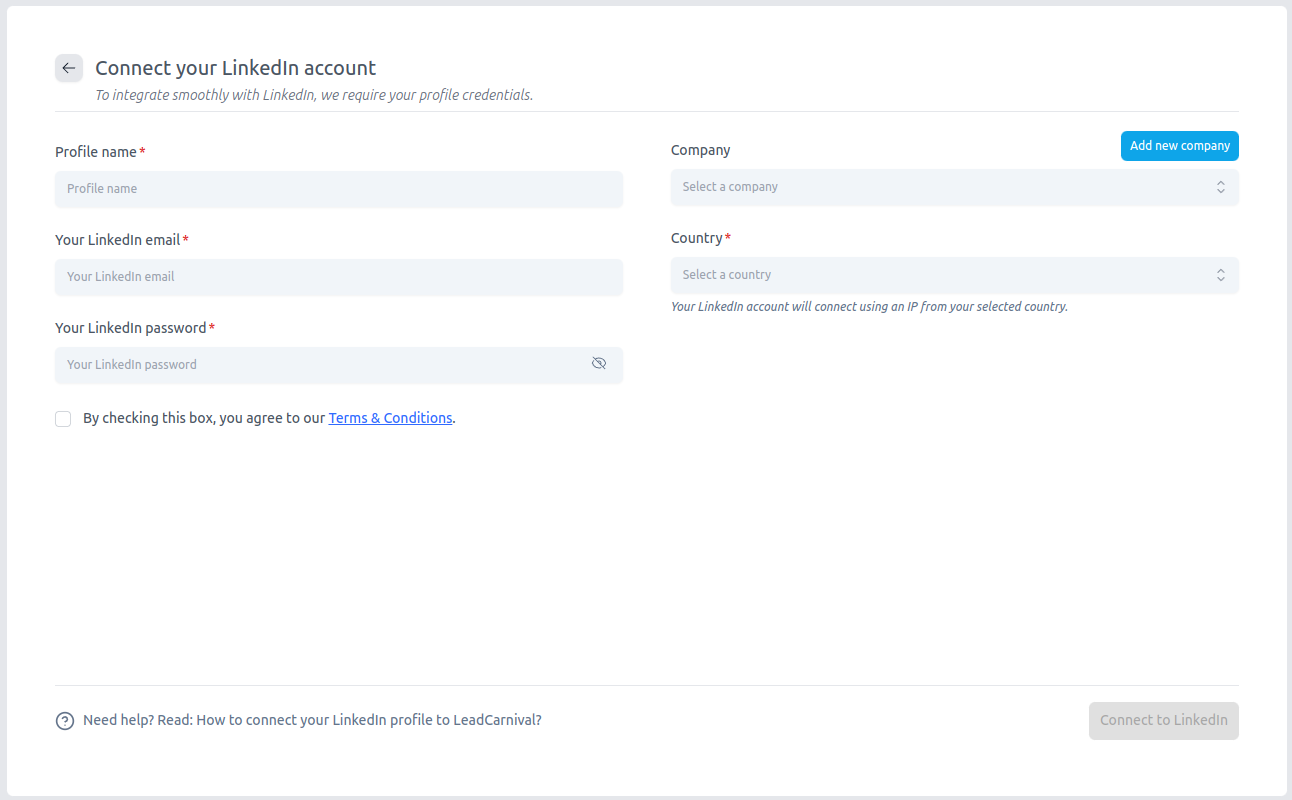
1) Fill in your profile details
Enter the following required fields:
- Profile name → A custom name to identify this LinkedIn account.
- Your LinkedIn email → The email you use to log in to LinkedIn.
- Your LinkedIn password → Your LinkedIn password (kept encrypted and secure).
- Company → Select your company, or click Add new company if it’s not listed.
- Country → Choose the country from which the account will appear to connect.
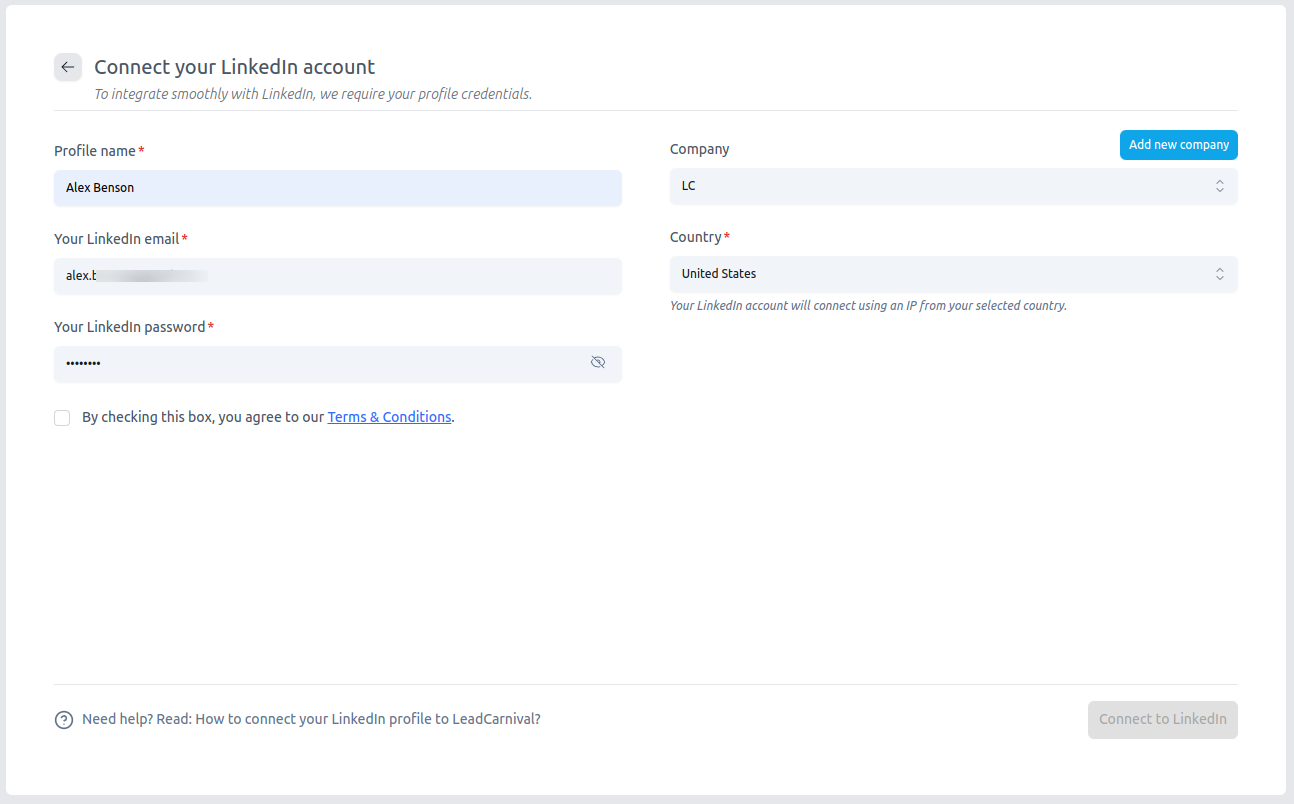
2) Agree to Terms & Conditions
- Check the box “By checking this box, you agree to our Terms & Conditions.” This confirms that you authorize LeadCarnival to connect your LinkedIn profile securely.
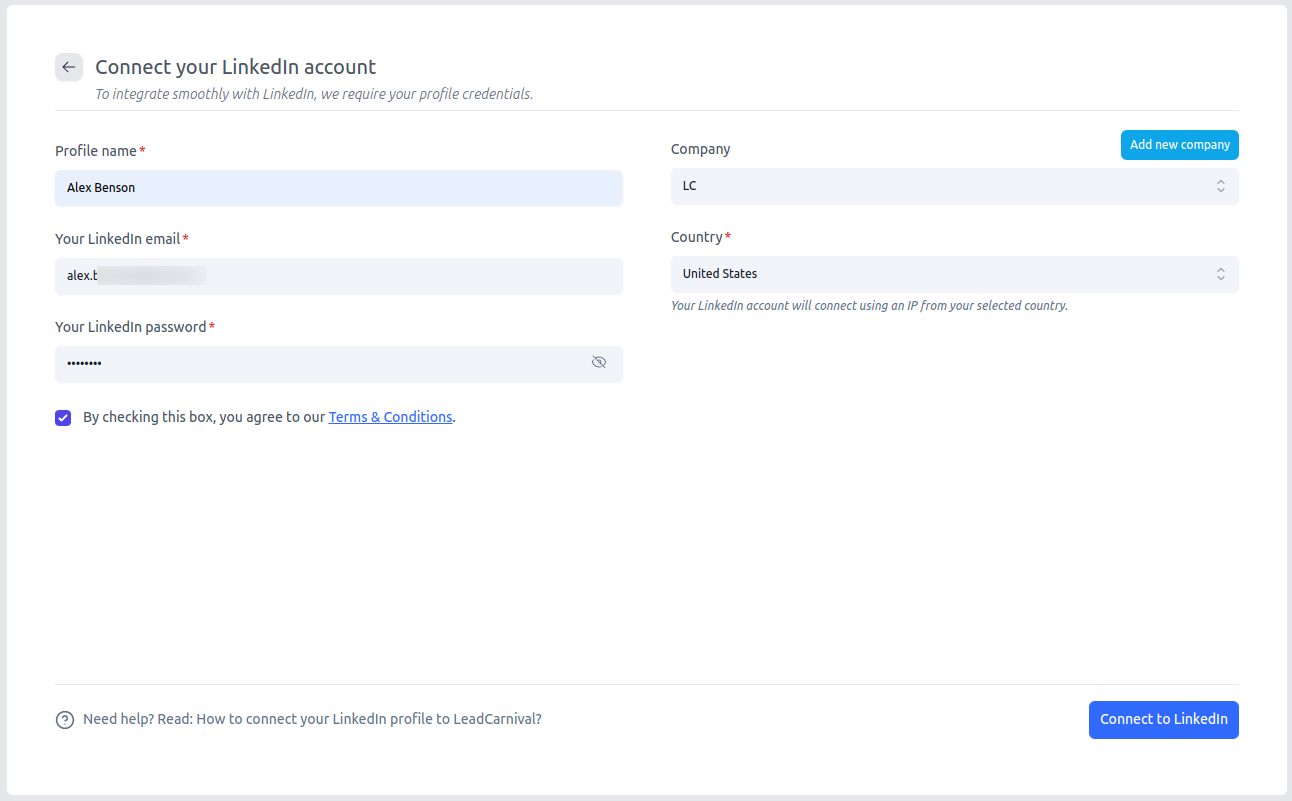
3) Activate the Connect button
After filling in all required fields and checking the consent box, the Connect to LinkedIn button will become active.
Click Connect to LinkedIn to complete the setup.
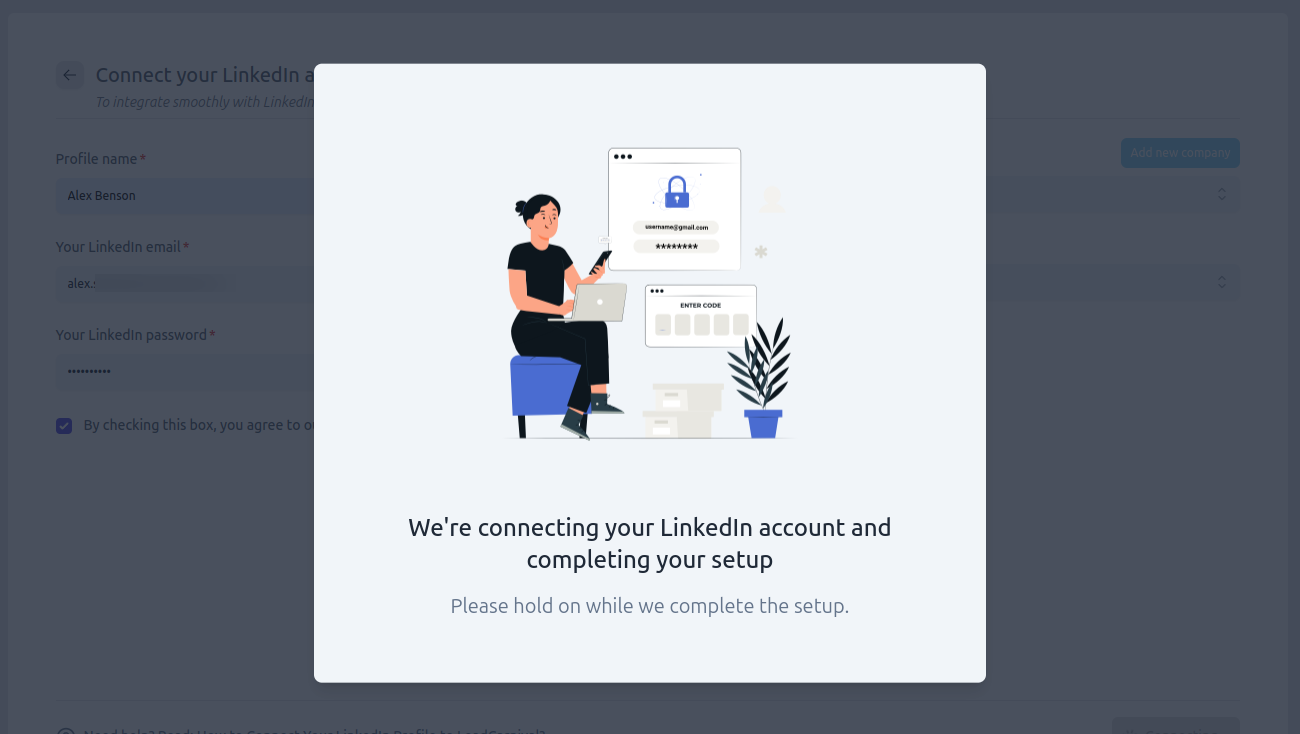
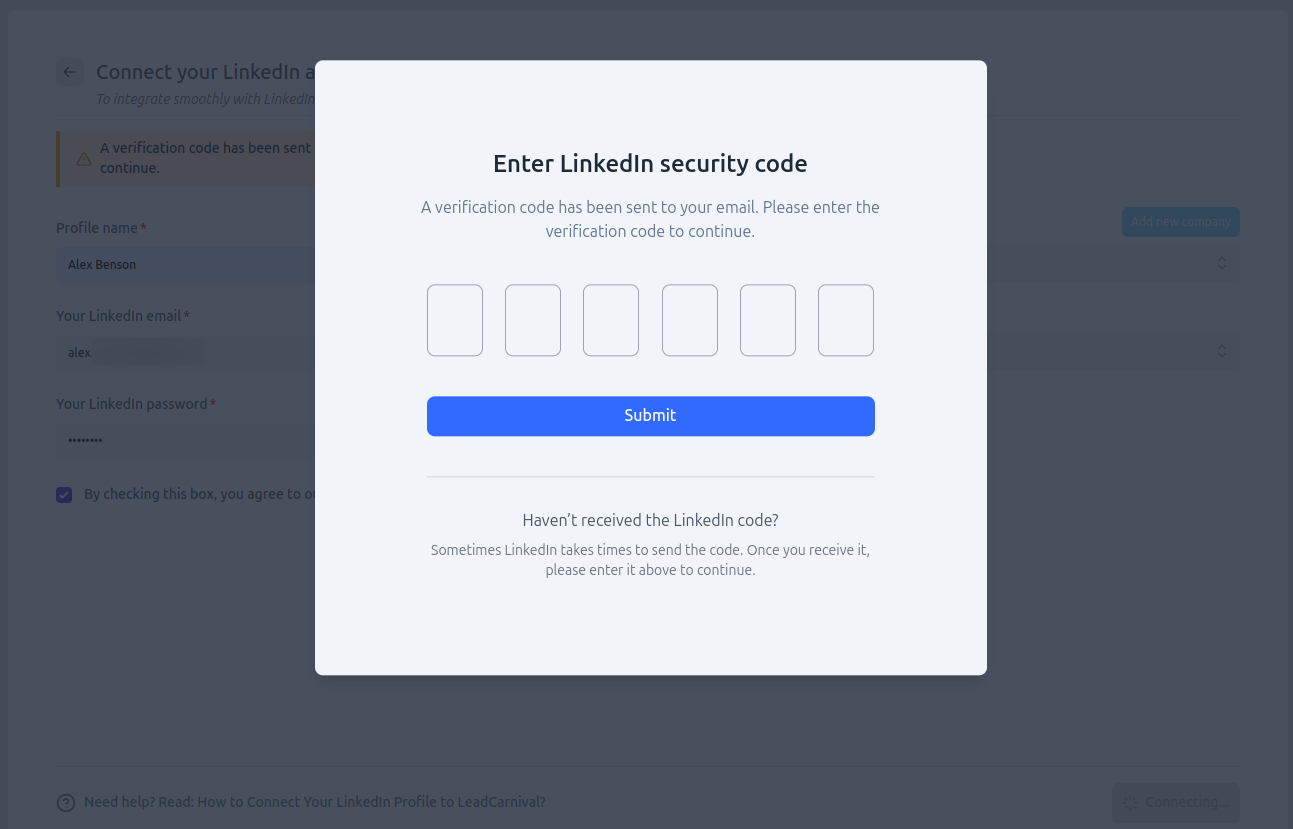
4) Verify your LinkedIn account (Email Code)
If LinkedIn detects a new login, it may send a verification code to your registered email address.
- Open your LinkedIn-connected email inbox.
- Find the LinkedIn verification email and copy the 6-digit code.
- Go back to LeadCarnival and enter the verification code in the pop-up window.
- Click Submit to complete the connection.
5) Redirect to Dashboard
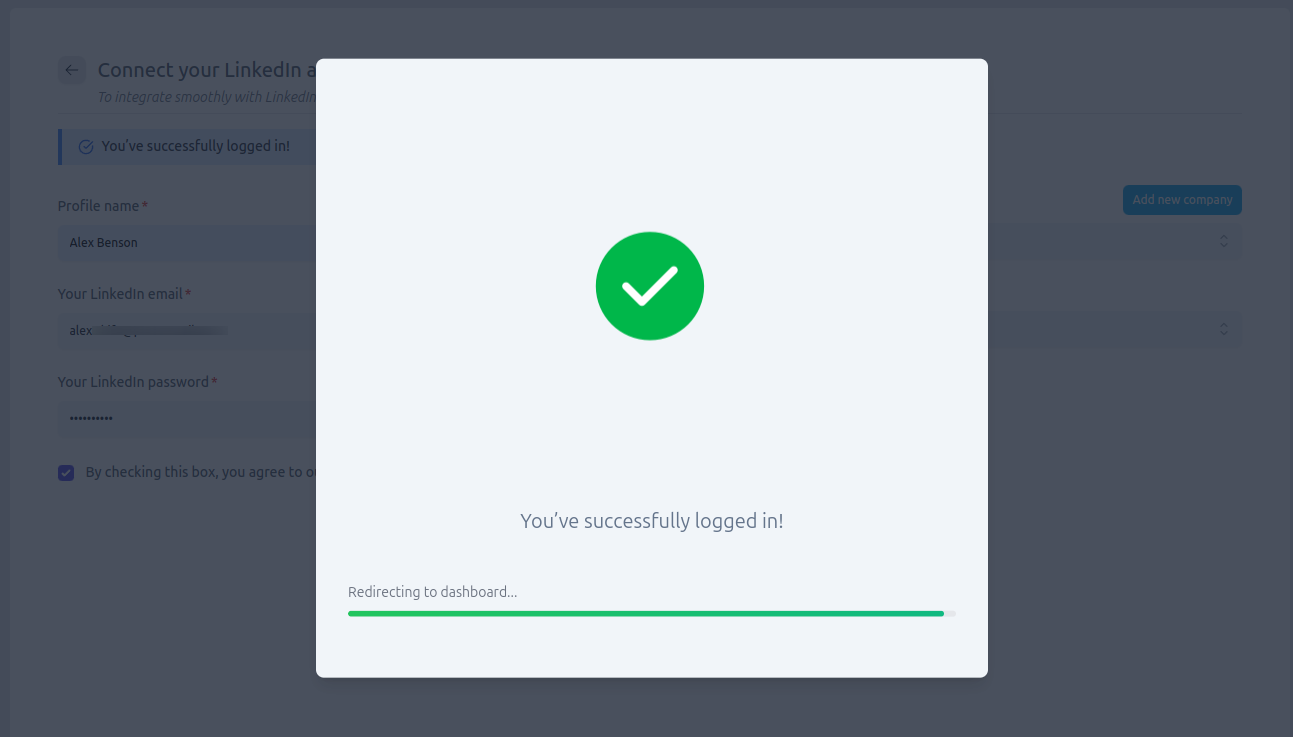
After a successful login and verification, you’ll be automatically redirected to the Dashboard. From there, you can start creating campaigns and managing your connected profiles.
5) Add More Profiles
If you want to connect more LinkedIn profiles, you can easily add them from your dashboard.
- Go to your Dashboard.
- Click the “+” (Add LinkedIn Profile) button next to your profile dropdown at the top.
- Repeat the same connection steps as before — fill in your LinkedIn credentials, verify via email code, and connect.
Each profile can have its own proxy, country setting, and campaign activities.
